DS5 Windows - Your Best Tool to use PS5 Controller on Your PC
DS5 Windows is a free community-built tool that helps you use the PlayStation 5 DualSense controller on Windows 10 and Windows 11 PCs. It’s built for gamers who want reliable input mapping, custom profiles, and easier controller setup – without relying on Sony’s limited native support.
Windows may detect the DualSense controller automatically, but many games do not support advanced features such as adaptive triggers, haptic feedback, or button remapping natively. DS5 Windows bridges this gap by providing a reliable interface that unlocks additional controller capabilities and helps your controller work smoothly with a wide range of games and platforms.
Why Choose DS5Windows?
Older PlayStation controllers, such as DualShock 3 and DualShock 4, required third-party tools to function properly on Windows systems. This often resulted in limited compatibility and complex setup.
With the DualSense controller, Sony introduced native plug-and-play support for Windows 10 and 11. However, native support still does not unlock all advanced controller features. DS5 Windows builds on this foundation by enabling enhanced controller functionality, smoother performance, and deeper customization than what is available by default.
Whether you play on Steam, non-Steam games, or other platforms, DS5 Windows ensures a reliable and optimized DualSense experience on PC.
🎮 Full Adaptive Triggers and Haptic Feedback Support
Experience true next-gen gameplay on PC with dynamic trigger resistance and immersive vibration. DS5 Windows brings the real PlayStation 5 feel to supported and non-supported games alike.
🕹️ Smart Controller Emulation for Maximum Compatibility
Switch between Xbox, DualShock 4, and DualSense modes to ensure your controller works smoothly with almost any PC game.
🔧 Advanced Button and Profile Customization
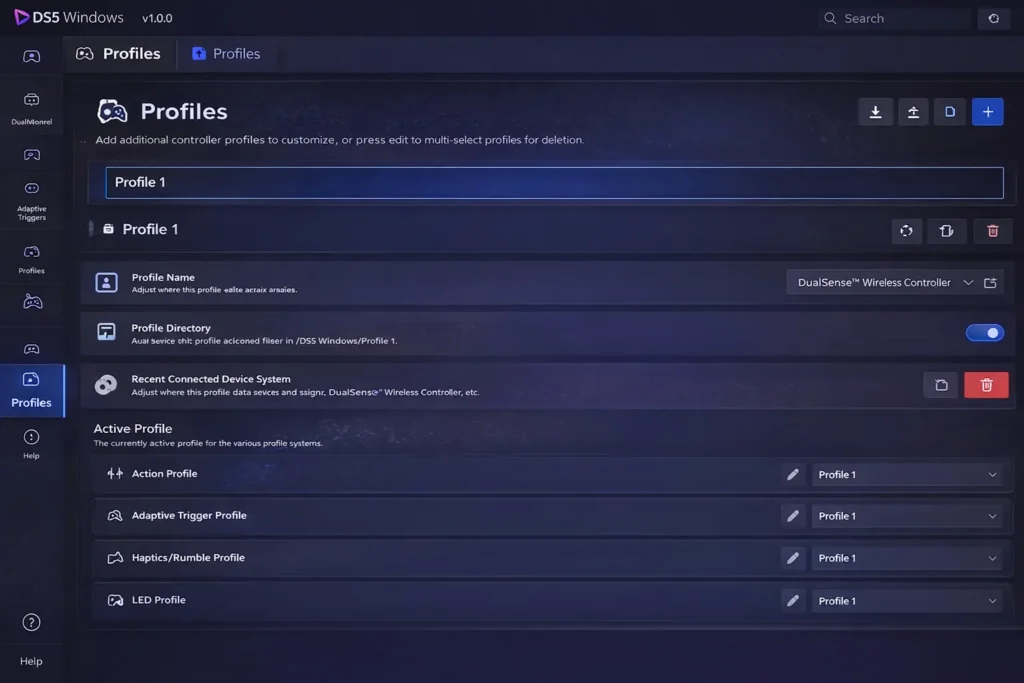
Create custom layouts, remap buttons, and save multiple profiles for different games. Instantly switch settings to match your play style.
🌈 RGB Lighting and Visual Customization
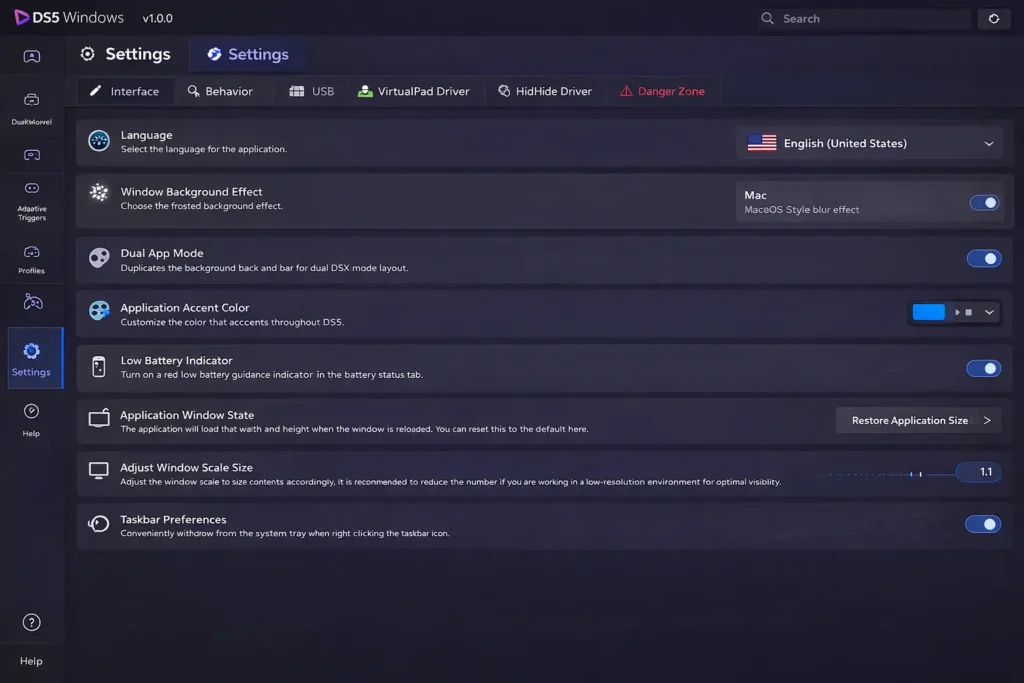
Personalize your controller and app interface with custom LED colors, themes, and visual effects that match your gaming setup.
📊 Real-Time Status and Performance Monitoring
Monitor battery level, connection status, and button activity in real time to keep your controller performing at its best.
🚀 Auto Connect and Instant Startup Support
Launch DS5 Windows automatically with Windows and connect your controller instantly, so you are always ready to play without delays.
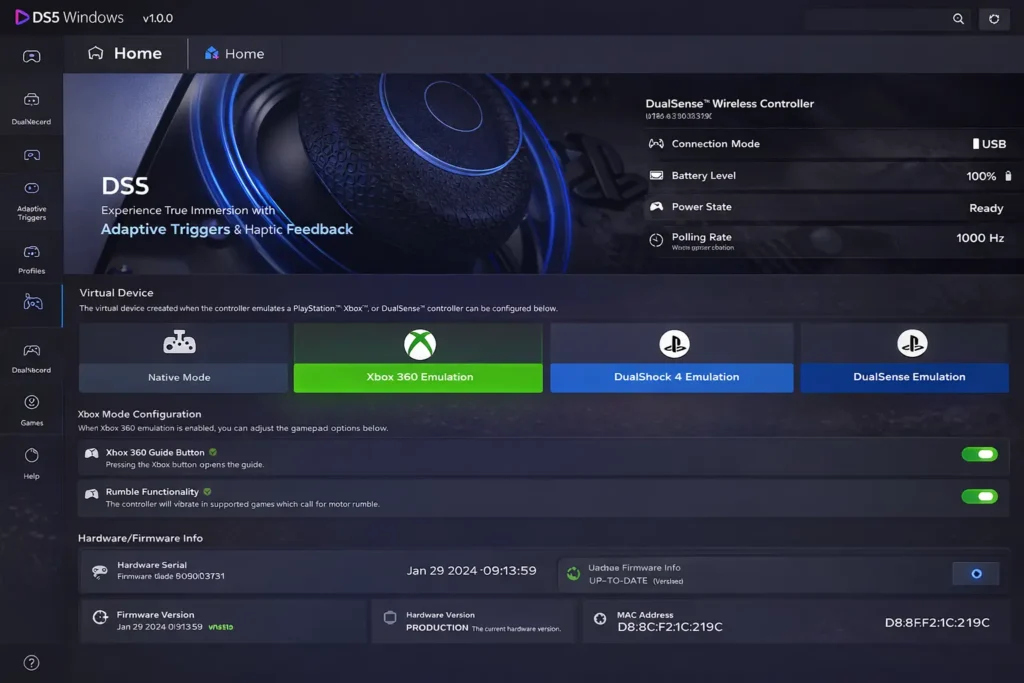
DXS/DS5 Screenshots
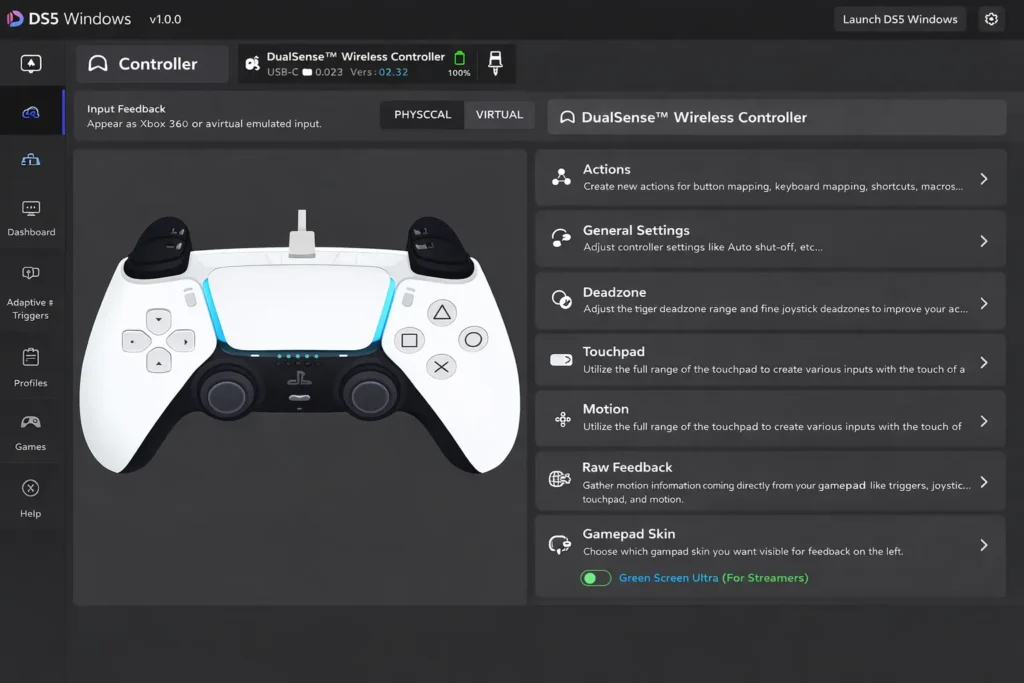
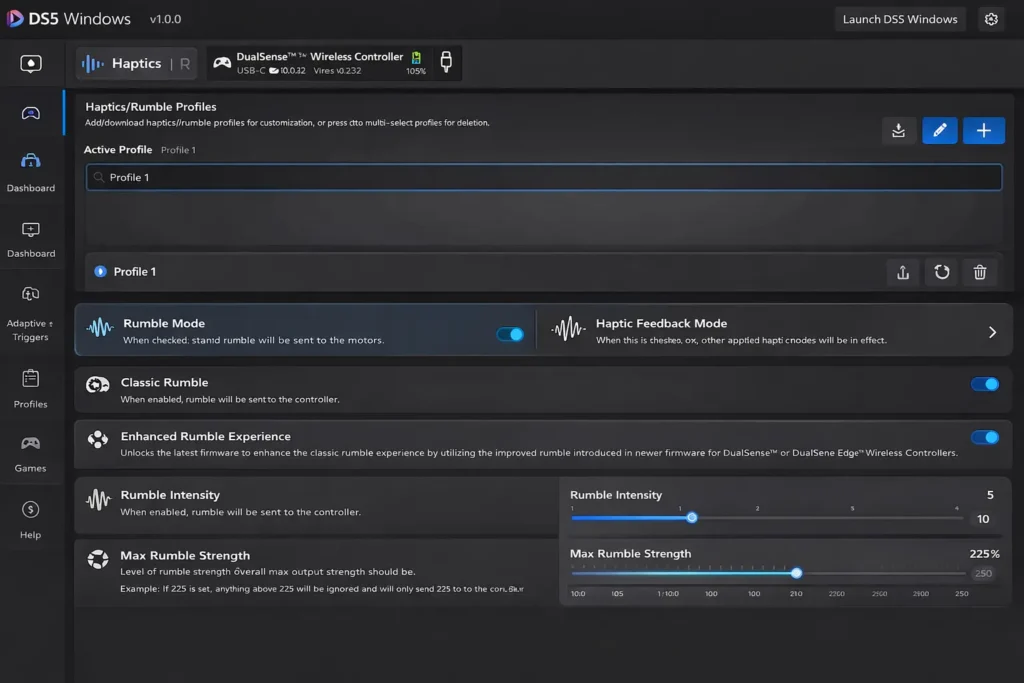
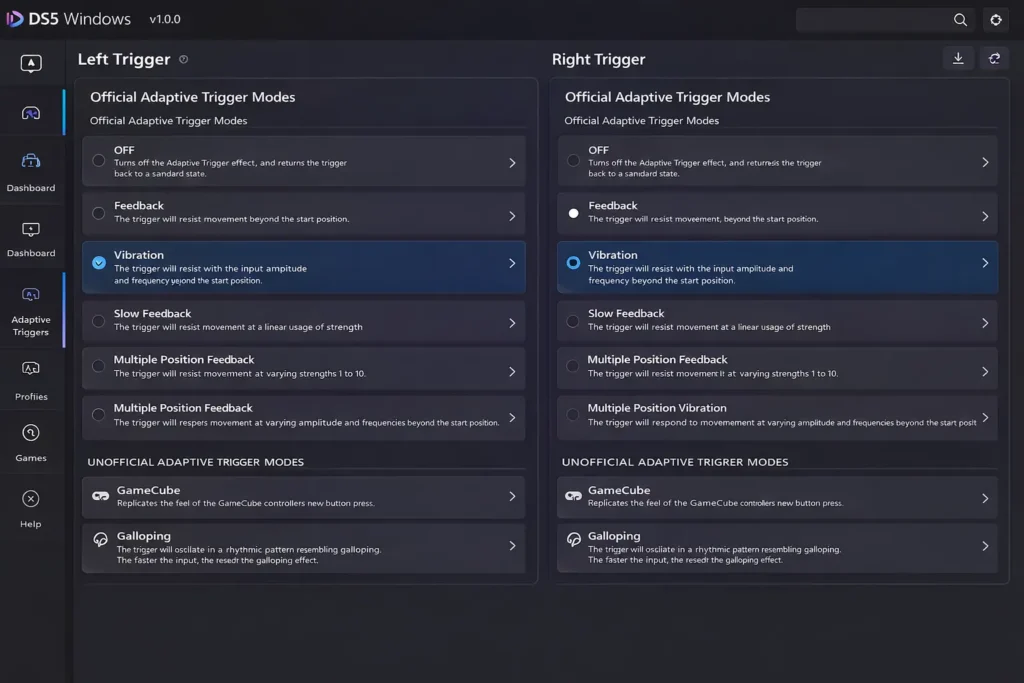
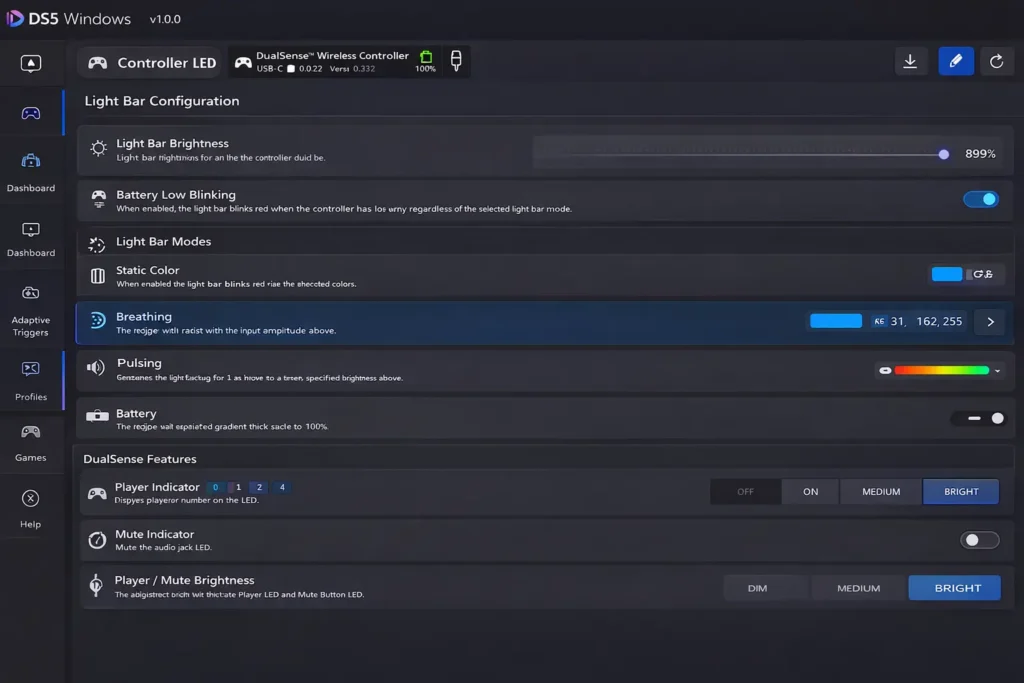
System Requirements
DS5 Windows runs on:
PlayStation 5 DualSense controller (USB or Bluetooth)
Microsoft .NET Framework (latest version)
ViGEmBus driver (required for emulation support)
HidHide driver (optional, improves input handling)
These components help DS5 Windows deliver stable controller support and unlock enhanced features.
Core Capabilities of DS5 Windows
DS5 Windows provides tools and features that make using your DualSense controller on PC more powerful and flexible:
Unlock advanced DualSense Controller Features
– Adaptive triggers and immersive haptic feedback in supported gamesKeyboard & Mouse Remapping
– Assign controller buttons to keyboard and mouse inputsController Diagnostics
– View connection status and test button functionsProfile Support
– Save and load controller configurations for specific gamesImproved Compatibility
– Works with both Steam and non-Steam titlesStable USB and Bluetooth Connections
– Reliable controller input whether wired or wireless
These features help ensure your DualSense controller performs consistently across a wide variety of PC titles.

DS5 Windows Overview
What is DS5Windows?
DS5Windows” isn’t the name of a real, standalone application – there’s no official software by that name. It’s a term that shows up a lot in search because people are looking for a DS4Windows-style tool that works with the PS5 DualSense controller, and the name naturally follows that pattern.
In practice, “DS5Windows” gets used in two different ways. Most commonly, people mean DualSenseX (DSX) – a third-party app built by Paliverse specifically for the DualSense controller, with proper support for adaptive triggers and haptic feedback. Other times, it’s used more loosely as shorthand for “whatever the PS5 equivalent of DS4Windows is” – which could mean DualSenseX, or it could just as easily mean DS4Windows itself, since DS4Windows also supports the DualSense controller (just with less DualSense-specific functionality than DSX offers).
This site exists to clear up exactly that confusion and to point you to the real, official tools depending on what you actually need. If your controller is a DualSense and you want full adaptive trigger and haptic feedback support, DualSenseX is what you’re looking for. If you want broader compatibility across older PlayStation controllers too, DS4Windows is the better fit. Either way, you’ll find verified downloads and setup guides for both on this site.
How It Works?
DS5 Windows acts as a bridge between your PlayStation 5 DualSense controller and Windows-based games and applications. It ensures that your controller is correctly recognized, configured, and optimized for maximum compatibility and performance.
When a DualSense controller is connected via USB or Bluetooth, DS5 Windows immediately detects the device and reads its hardware input signals, including buttons, triggers, touchpad, motion sensors, and vibration motors.
The software then creates a secure virtual controller using advanced emulation technology. This virtual controller appears to Windows and supported games as a standard Xbox, DualShock 4, or DualSense-compatible device. This process allows games that do not natively support PlayStation controllers to work seamlessly without manual configuration.
At the same time, DS5 Windows enables full access to advanced DualSense features such as Adaptive Triggers, Haptic Feedback, motion sensing, and RGB lighting. These features are managed in real time and automatically adjusted based on game profiles and user preferences.
All controller inputs can be customized through built-in profiles. Users can remap buttons, configure keyboard and mouse actions, adjust sensitivity, and create shortcuts for different games and applications.
To prevent conflicts and double input issues, DS5 Windows integrates controller filtering technology that hides the physical controller from unsupported programs while allowing the virtual controller to remain visible. This ensures stable and accurate input during gameplay.
Once configured, DS5 Windows runs efficiently in the background. It automatically reconnects your controller, loads saved profiles, and applies performance optimizations every time you launch a game, delivering a smooth and reliable gaming experience on Windows.
Features
- Full support for PlayStation 5 DualSense controllers on Windows 10 and Windows 11
- Works with both USB and Bluetooth connections for flexible gameplay
- Adaptive Trigger configuration, allowing varied resistance where supported
- Haptic Feedback control for enhanced vibration in compatible games
- Controller button remapping, enabling custom layouts and profiles
- Keyboard and mouse mapping, allowing controller buttons to trigger keys and mouse actions
- Controller profile system, letting users save and switch between different configurations
- Real-time controller status display, including connection and battery level
- Basic controller testing tools to verify button, trigger, and stick functionality
- Optional HidHide integration to avoid double input issues in some games
- Automatic device detection and reconnection for a smooth setup experience
- Compatible with Steam and non-Steam games, extending controller usability
- Driver support integration (e.g., ViGEmBus) for virtual controller emulation
- Lightweight and optimized performance, running efficiently in the background
- Automatic updates, delivering fixes and improvements when released
Compatibility
DS5 Windows works with most PC games and gaming platforms. While some titles offer native DualSense support, others require software tools like DS5 Windows to enable full functionality.
Whether it’s Steam, Epic Games, or standalone executables, DS5 Windows helps your controller work as expected, with enhanced customization and more control.
Changelog
Source Code
You can download the lates source code on GitHub